Verify your install
Here's exactly what a correct install looks like, folder by folder, from a real machine. Compare each screenshot to your own setup. Every image is clickable — tap one to open it, then click again to view it at full Two Point Hospital resolution.
The shots below are shown scaled to fit the page. Click any one to open it in a viewer; click the image once more to flip to its original 1920 × 1080 size, then press Esc to close. Handy for reading the small filenames.
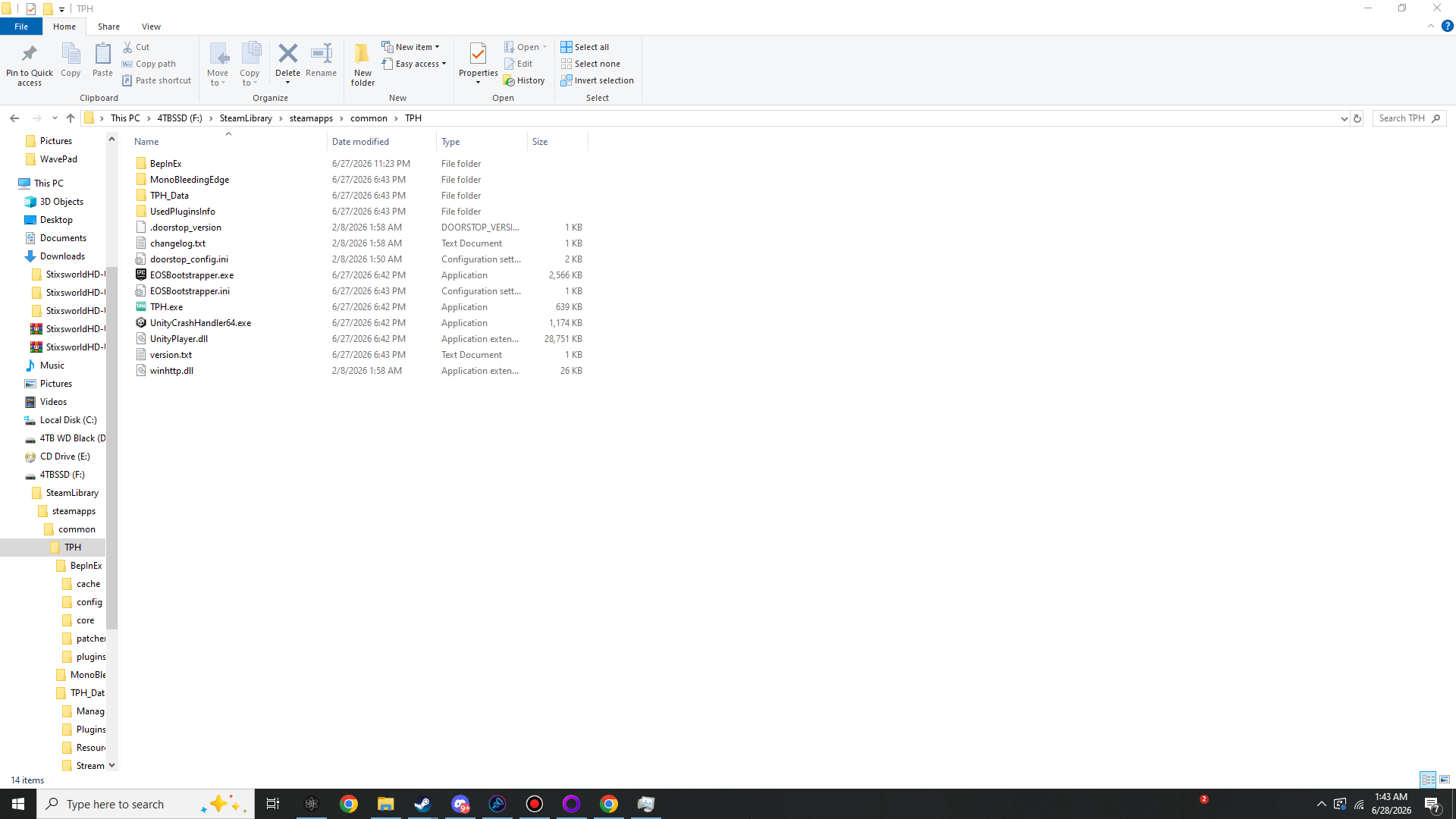
01 Your game folder (root)
After installing BepInEx, your game's root folder gains a BepInEx folder plus the loader
files winhttp.dll and doorstop_config.ini, all sitting beside
TPH.exe. The path bar here reads …\common\TPH — remember the
folder name can differ; the contents are what matter.
 View full size
Look for: a BepInEx folder, winhttp.dll,
doorstop_config.ini, and your TPH.exe. If those four are
present together, the loader is correctly placed.
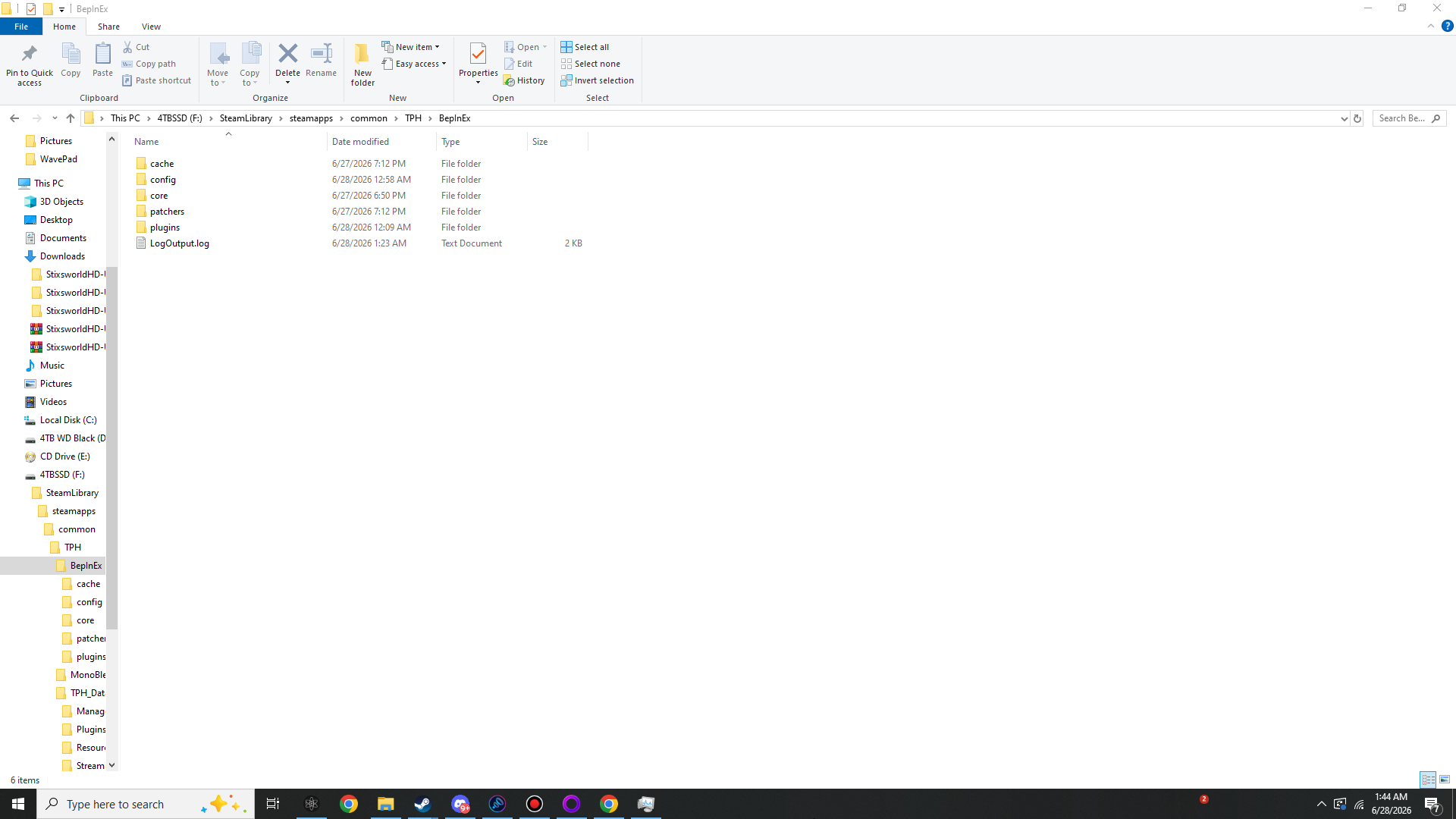
02 Inside the BepInEx folder
Open that BepInEx folder. After you've launched the game once, it should hold five
subfolders and a log file. The two that matter most are plugins (where the mod lives) and
config (where its settings land).
 View full size
Look for: cache, config, core,
patchers, plugins and LogOutput.log. The presence of
LogOutput.log confirms BepInEx actually ran.
If you only see core and patchers, you haven't launched the game yet
since installing BepInEx. Run it once to the main menu and these folders appear. See
Step 02 · launch once.
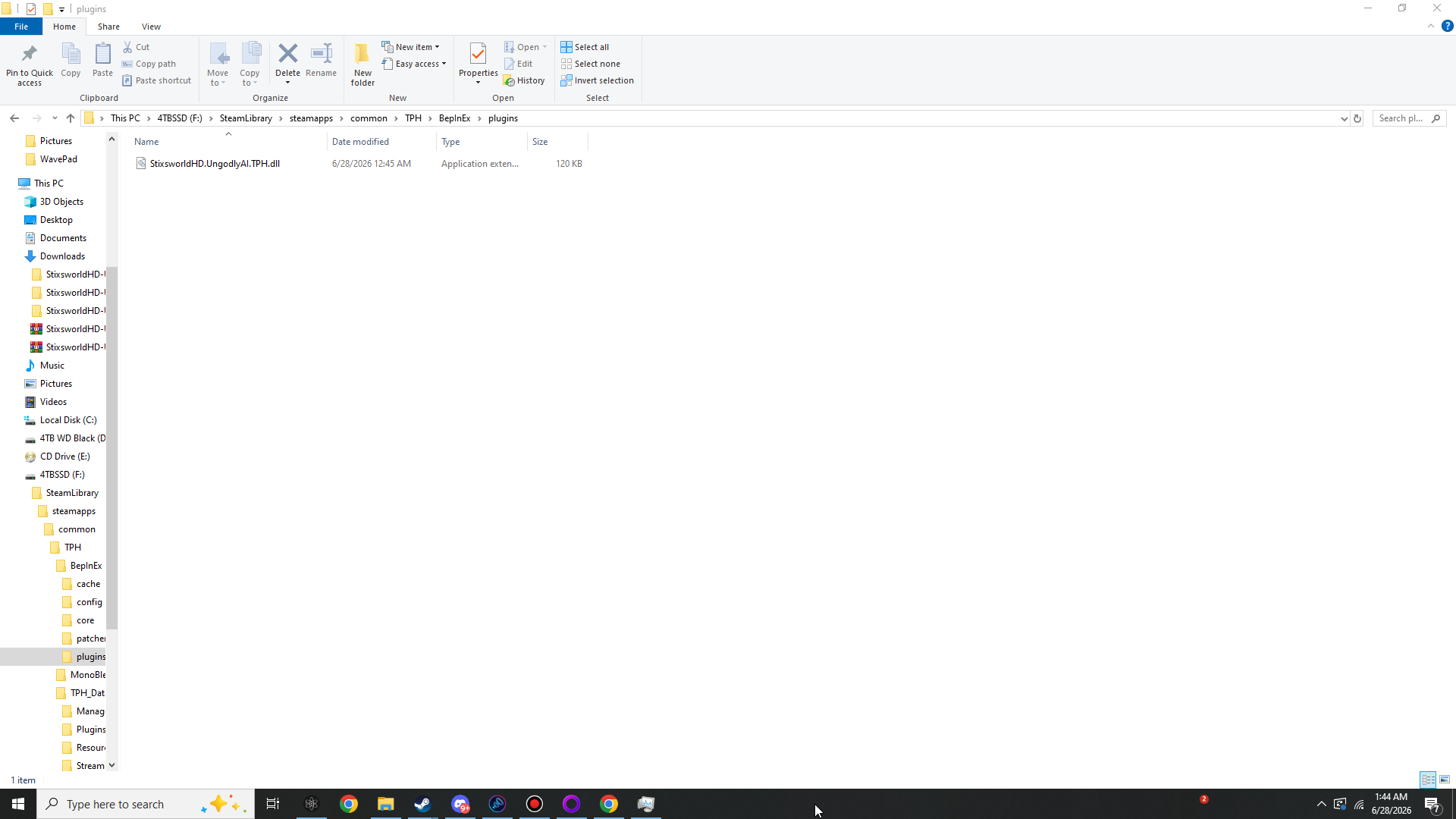
03 The plugins folder
This is where you placed the mod. It should contain exactly one file:
StixsworldHD.UngodlyAI.TPH.dll (about 120 KB).
 View full size
Look for: StixsworldHD.UngodlyAI.TPH.dll sitting directly in
plugins — no subfolder. If it's here, the mod is installed.
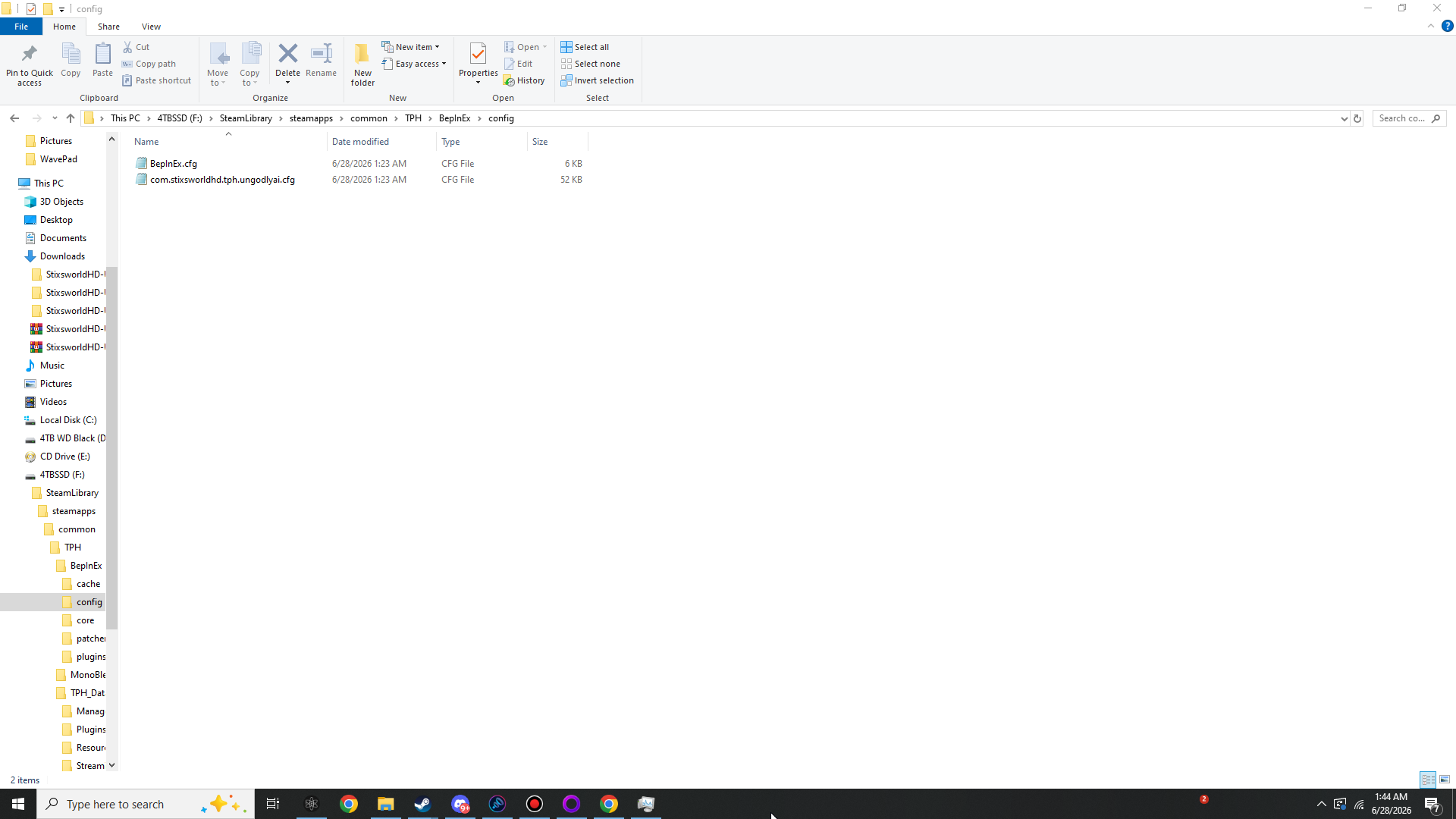
04 The config folder
After launching with the mod installed, the config folder holds two files: BepInEx's own
BepInEx.cfg, and the mod's auto-generated
com.stixsworldhd.tph.ungodlyai.cfg (around 52 KB — that's all 160 settings
written out and commented).
 View full size
Look for: com.stixsworldhd.tph.ungodlyai.cfg. Its existence proves the
plugin loaded and initialised. This is the file you'll edit to tune the mod.
05 The final check — in-game
Folders all match? One last confirmation: load into any hospital and press F6. The Overhaul's configuration window should open right over the game. If it does, everything is working — you're done.
Reference folders matched and the F6 window opens? The mod is live. Head to Configuration to set your difficulty and switch on the helpers, or read Systems & features to see what each part does.
If the window won't open but the .dll is in plugins, check
LogOutput.log for a line mentioning the plugin or an error, and confirm you launched
the game after adding the file. The Troubleshooting page
walks through it.